How to manage songs on an iPod classic
The iPod classic can't edit its own library, and Apple's sync only copies what's in the Music app. Clickwill opens the library on the iPod itself, so you fix songs and albums right where they are.
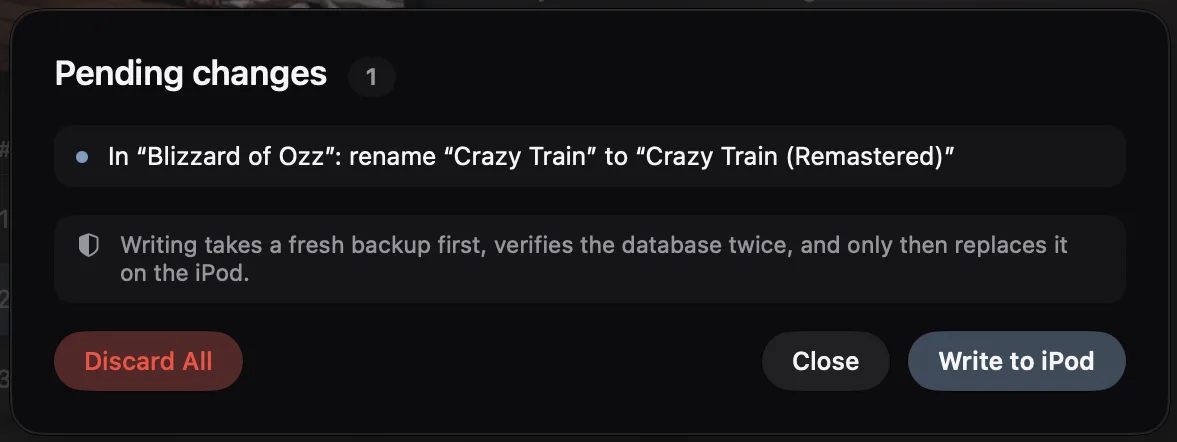
Connect the iPod and open Clickwill. Find, rename or delete songs in Songs, open an album from Cover Flow to reorder its songs, and use Edit for the cover, album name and year. Every change waits until you click 1 change pending and Write to iPod.
Find any song
-
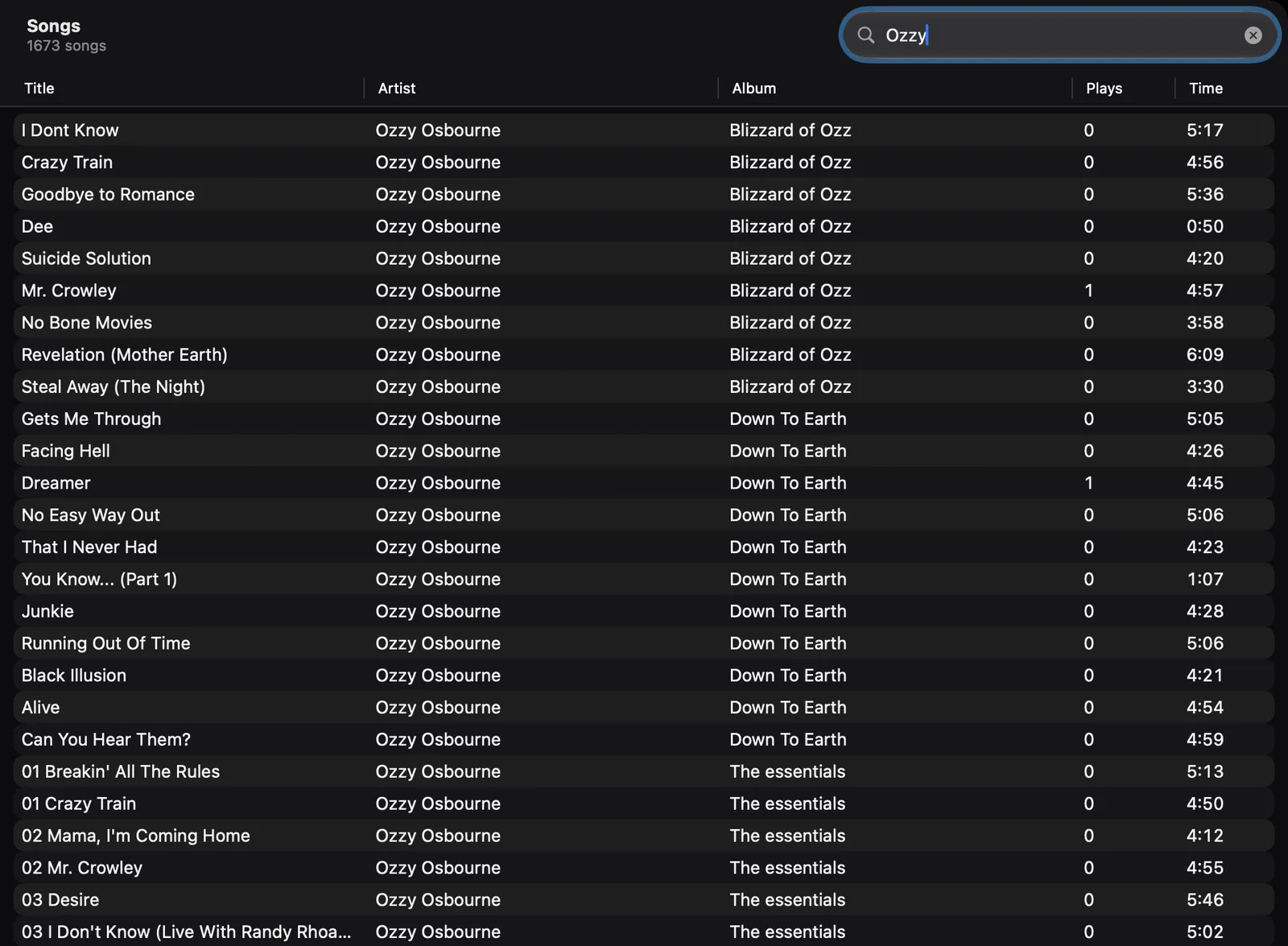
Click Songs in the sidebar
It lists every song on the iPod with its artist, album, play count and length.
-
Search, sort or play
Type in the search field at the top right. Click a column title to sort by it. Double-click a song to play it from the iPod.
-
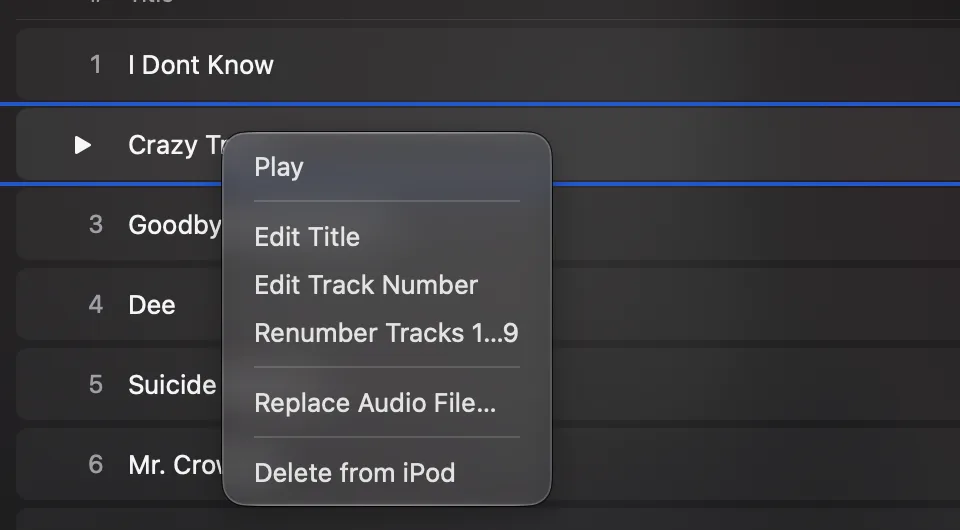
Right-click a song to change it
Choose Edit Title… to change its title or track number, Show Album to open its album, or Delete from iPod. To delete several songs, select them first.
Rename a song from its album
-
Open the album
Double-click its cover in Cover Flow.
-
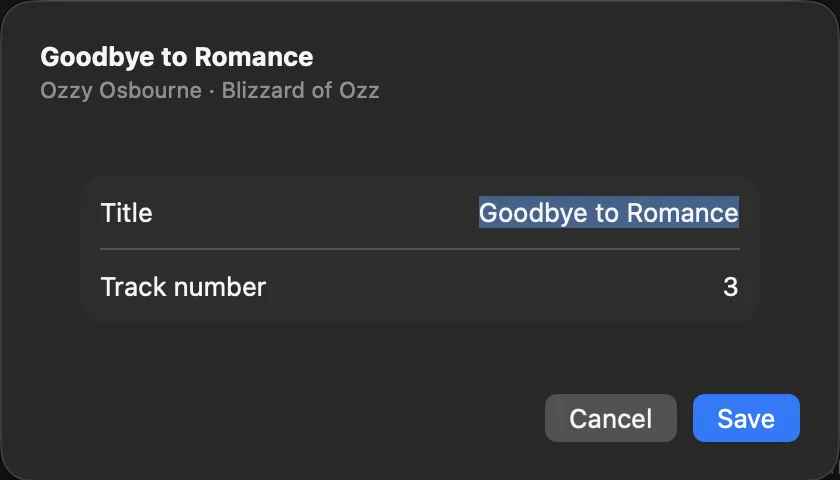
Choose Edit Title
Right-click the song, or click ··· at the end of its row, and choose Edit Title.
-
Type the new title
Press Return to keep it, or Escape to leave the title as it was.
Change the cover, album name or year
-
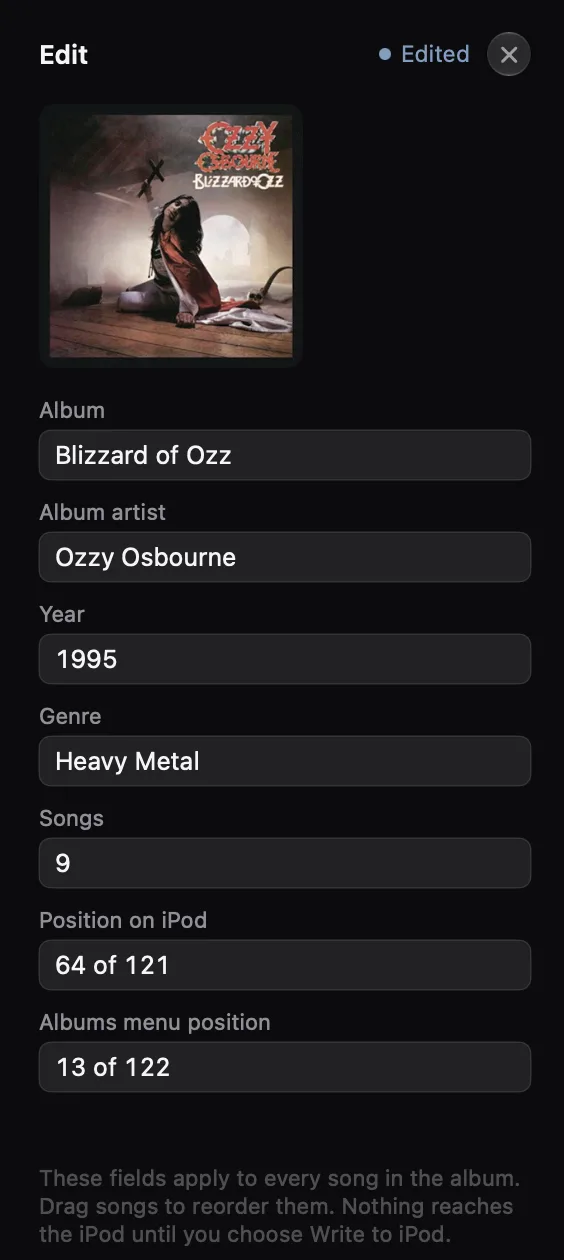
Open the Edit panel
In the album, click ··· next to Play and choose Edit.
-
Change what you need
The panel has the cover, album name, album artist, year and genre. Click the cover to choose a new image, or drag one onto it. These fields apply to every song in the album.
Put songs in order
In the album, drag a song up or down the list. The iPod plays the album in that order.
Put albums in order
-
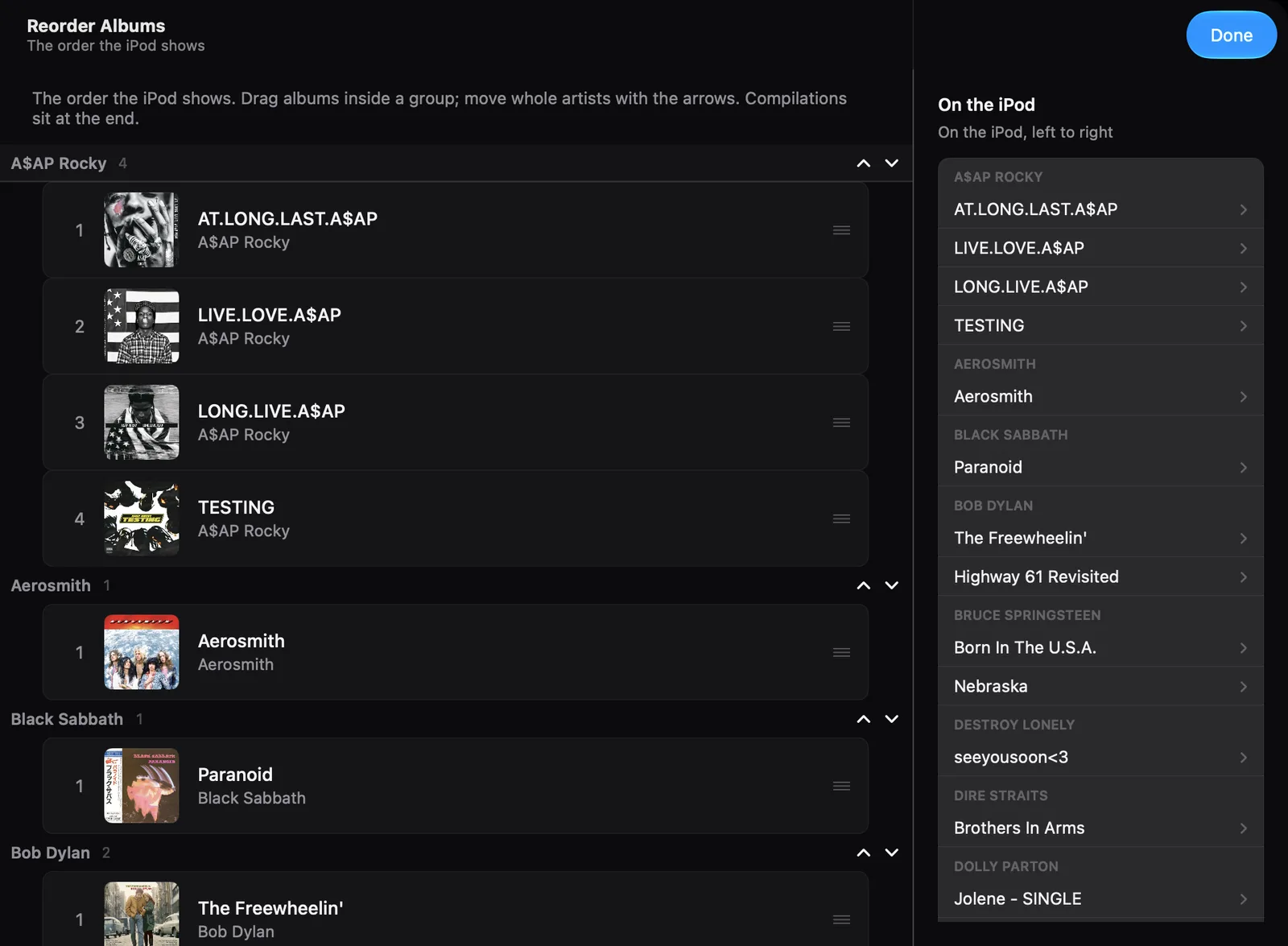
Open Reorder Albums
In Albums, click the ↑↓ button at the top right of the window.
-
Drag albums into place
Drag an album within its artist, or move a whole artist with the arrows next to the artist's name. The list on the right shows the iPod's Albums menu as it will look.
-
Click Done
It's at the top right.
Delete a song or an album
-
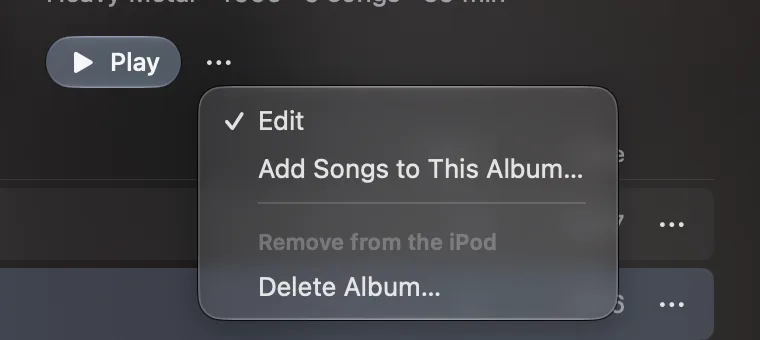
Choose what to delete
For a song, right-click it and choose Delete from iPod. For a whole album, click ··· next to Play and choose Delete Album….
-
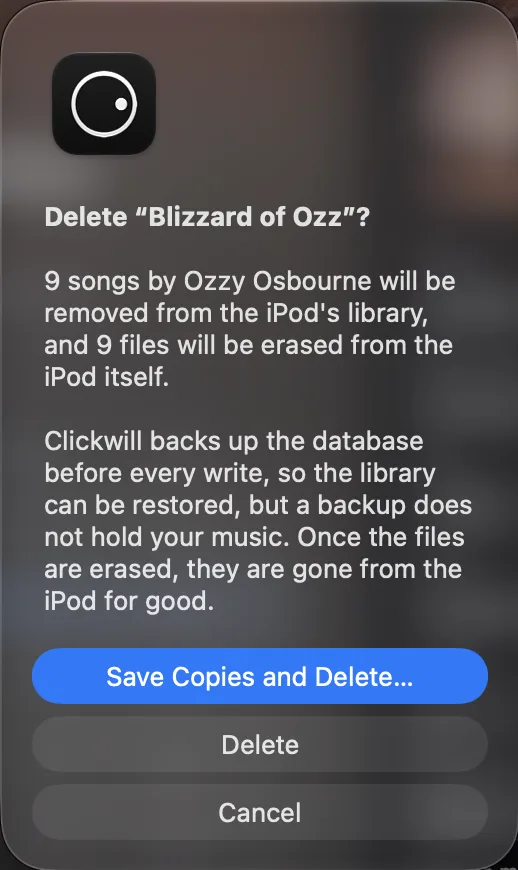
Keep a copy if you want one
Clickwill asks first. Save Copies and Delete… keeps the files on your Mac, Delete removes them from the iPod for good. A backup of the iPod's library is taken before every write, but it doesn't hold the music itself.
Put your changes on the iPod
-
Click 1 change pending
It's at the bottom of the window and counts everything you've changed so far.
-
Click Write to iPod
Check the list first. Clickwill takes a fresh backup of the iPod's library, writes your changes and checks them. If you change your mind later, Backups in the sidebar can put an earlier library back.