
How to put songs on an iPod classic from a Mac
Clickwill adds songs straight to your iPod. They don't have to be in the Music app first, and nothing already on the iPod changes.
In Clickwill, click Add Songs or Albums, choose the folder with your album and click Add to Library. Then click 1 change pending at the bottom of the window and choose Write to iPod.
What you need
- A Mac with macOS 26 or later.
- An iPod classic, connected to the Mac.
- The songs as files: MP3, AAC, Apple Lossless, WAV, AIFF or FLAC.
- The Music app closed. Clickwill doesn't write to the iPod while Music is open.
Step by step
-
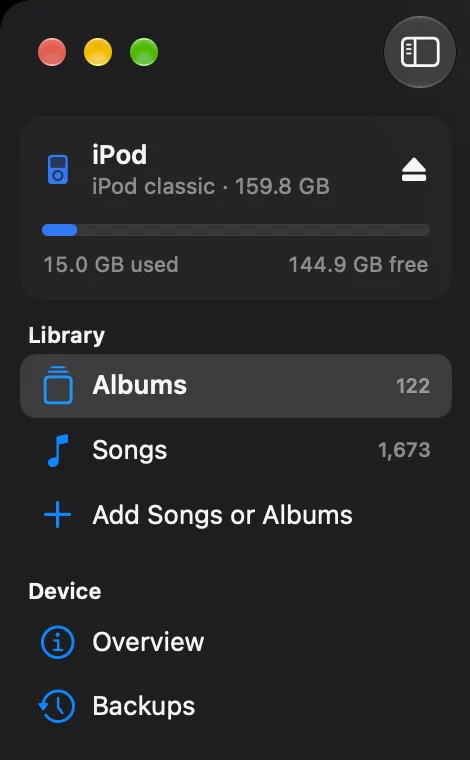
Connect the iPod and open Clickwill
Your iPod appears at the top of the sidebar, with the space left on it.
-
Click Add Songs or Albums
It's in the sidebar, under Library. Choose the songs, or the folder an album is in.
-
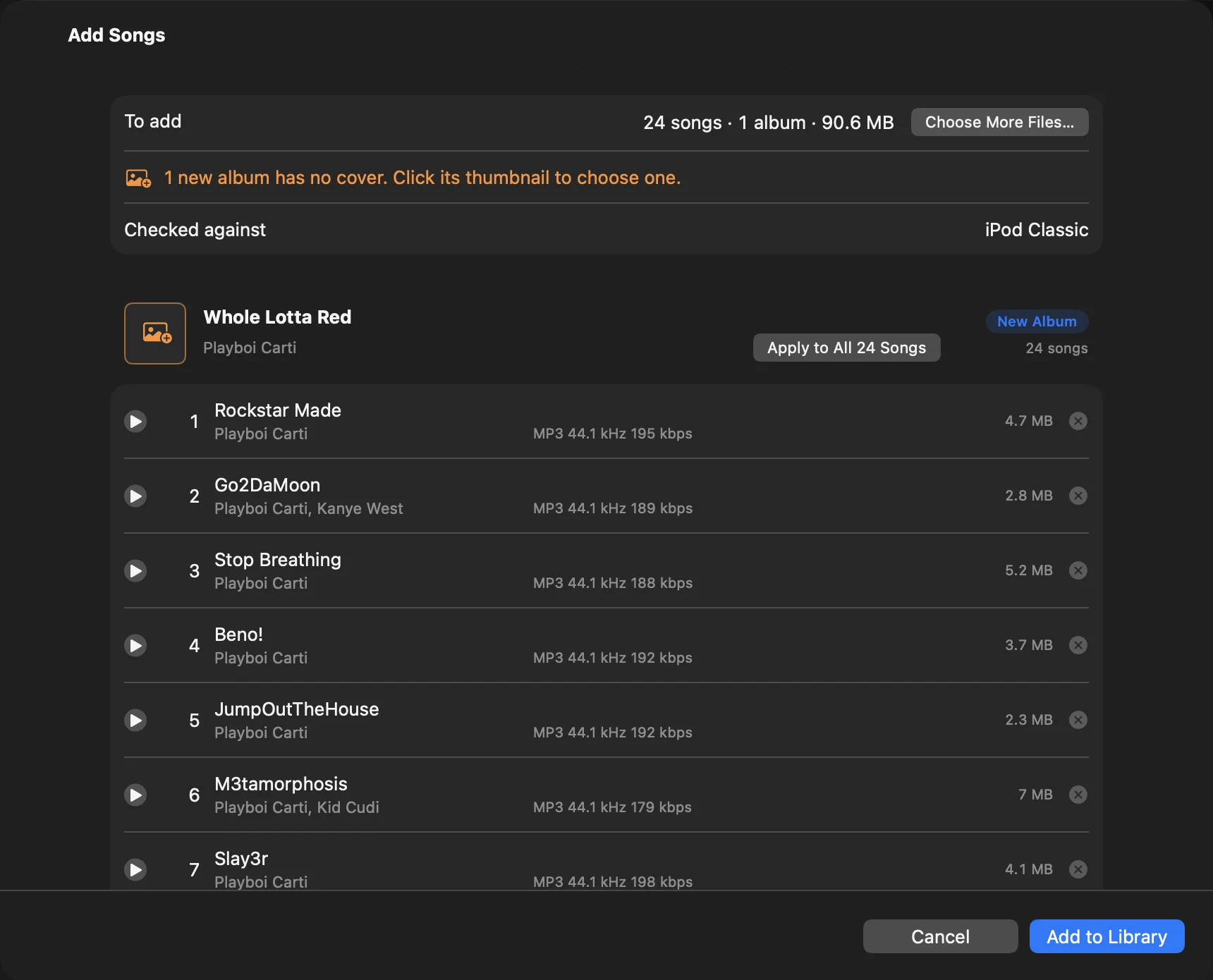
Check the album and click Add to Library
The Add Songs window lists every song with its format and size. An album that isn't on your iPod yet is marked New Album. If it has no cover, click the empty thumbnail to choose one.
-
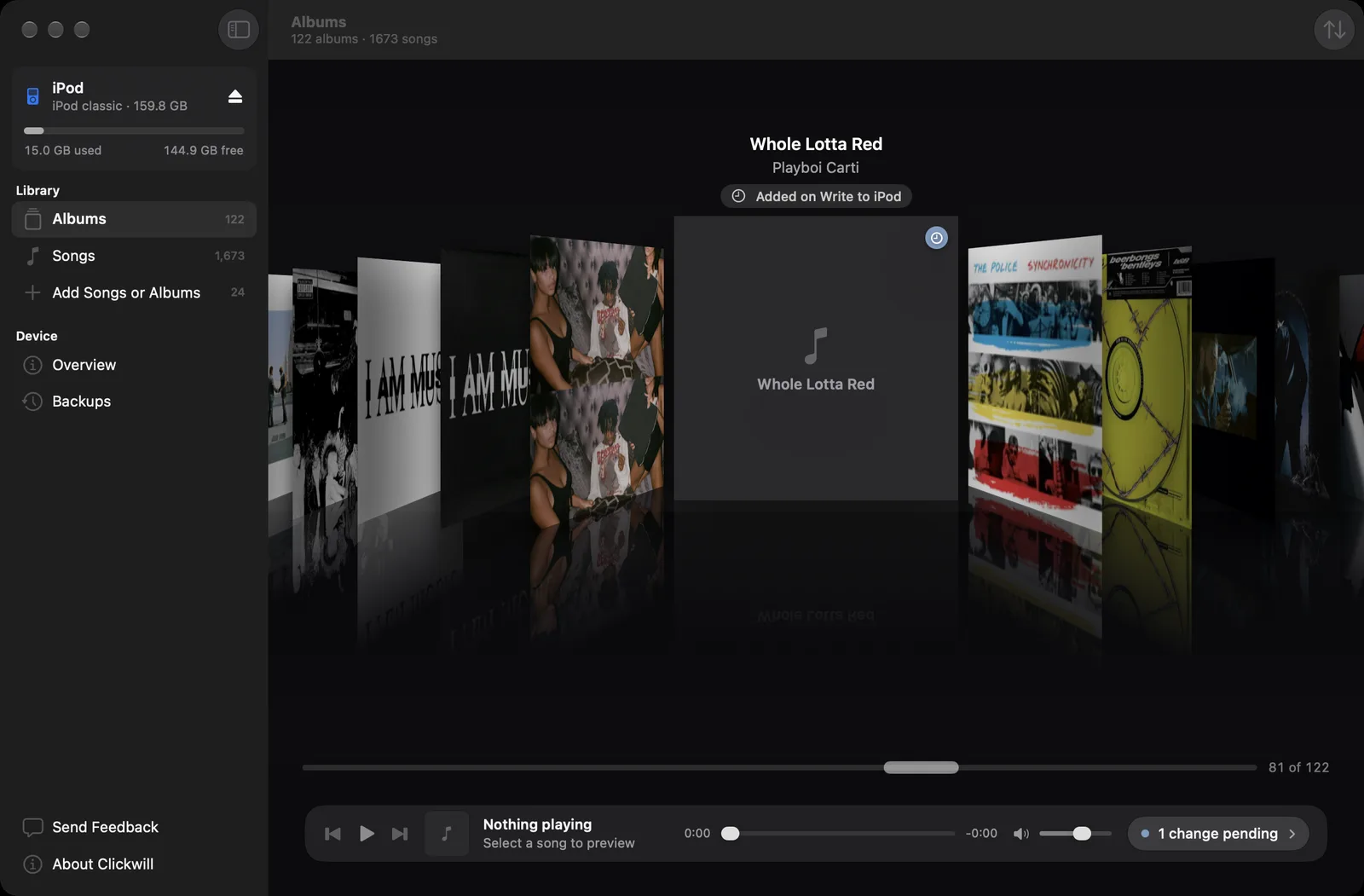
Click 1 change pending
Your album now stands in Cover Flow, where it will be on the iPod, marked Added on Write to iPod. Nothing has been copied to the iPod yet. To put it there, click 1 change pending at the bottom of the window.
-
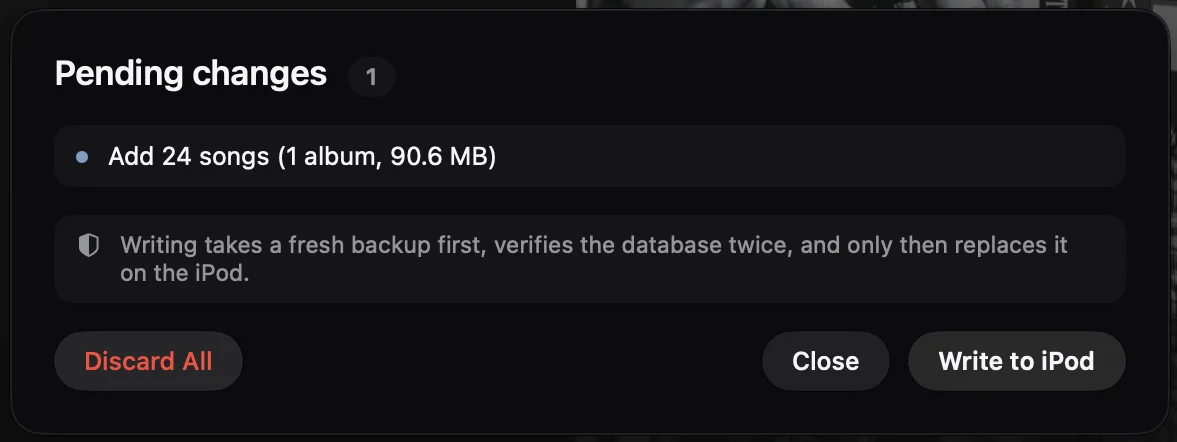
Click Write to iPod
Clickwill takes a fresh backup of the iPod's library, checks the new one twice and only then puts it on the iPod, together with the songs.
-
Eject the iPod
Use the eject button next to its name in the sidebar, then unplug it.
If the album is already on your iPod
Clickwill compares song titles and lengths, so it spots the album even when the files have no tags. Instead of New Album, the Add Songs window then asks what to do:
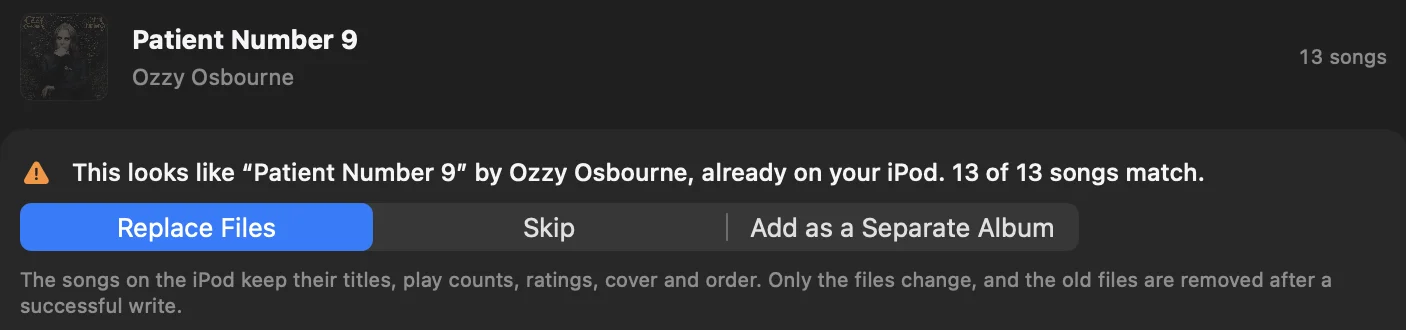
- Replace Files puts the new files under the songs that are there. Titles, play counts, ratings, cover and order stay.
- Skip leaves the album out.
- Add as a Separate Album adds it anyway, as a second copy.
Files the iPod can't play
FLAC, WAV and AIFF, and files above 16 bits, are converted to Apple Lossless when you add them. The Add Songs window shows it next to each song, for example Converted to Apple Lossless 16-bit 44.1 kHz. Your own files on the Mac stay as they are.