
How to add missing album artwork to an iPod classic
When an album on your iPod classic shows a blank square instead of its cover, you can add the cover to that album right on the iPod. No iTunes, no Music, no sync.
In Clickwill, open the album, click the three dots next to Play and choose Edit. Click the empty cover, choose the image and click Use as Cover. Then click 1 change pending and Write to iPod.
What you need
- A Mac with macOS 26 or later.
- An iPod classic, connected to the Mac.
- The album cover as an image: JPEG, PNG, HEIC or any other image macOS can open. Square, and at least 320 by 320 pixels, the largest size the iPod classic shows.
Step by step
-
Find the album without a cover
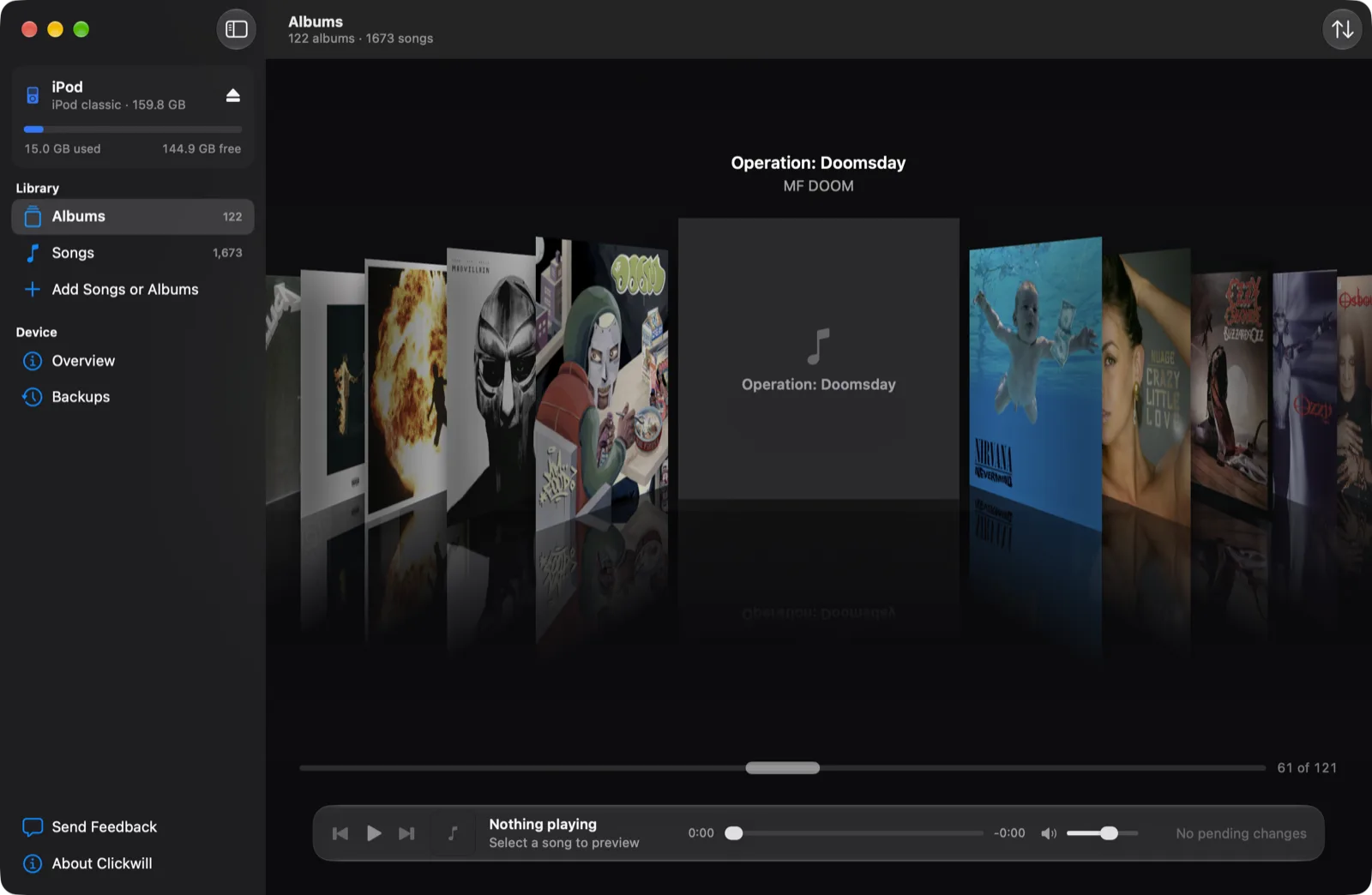
In Cover Flow, an album without a cover shows a music note and its name instead of the artwork.
-
Open the album and choose Edit
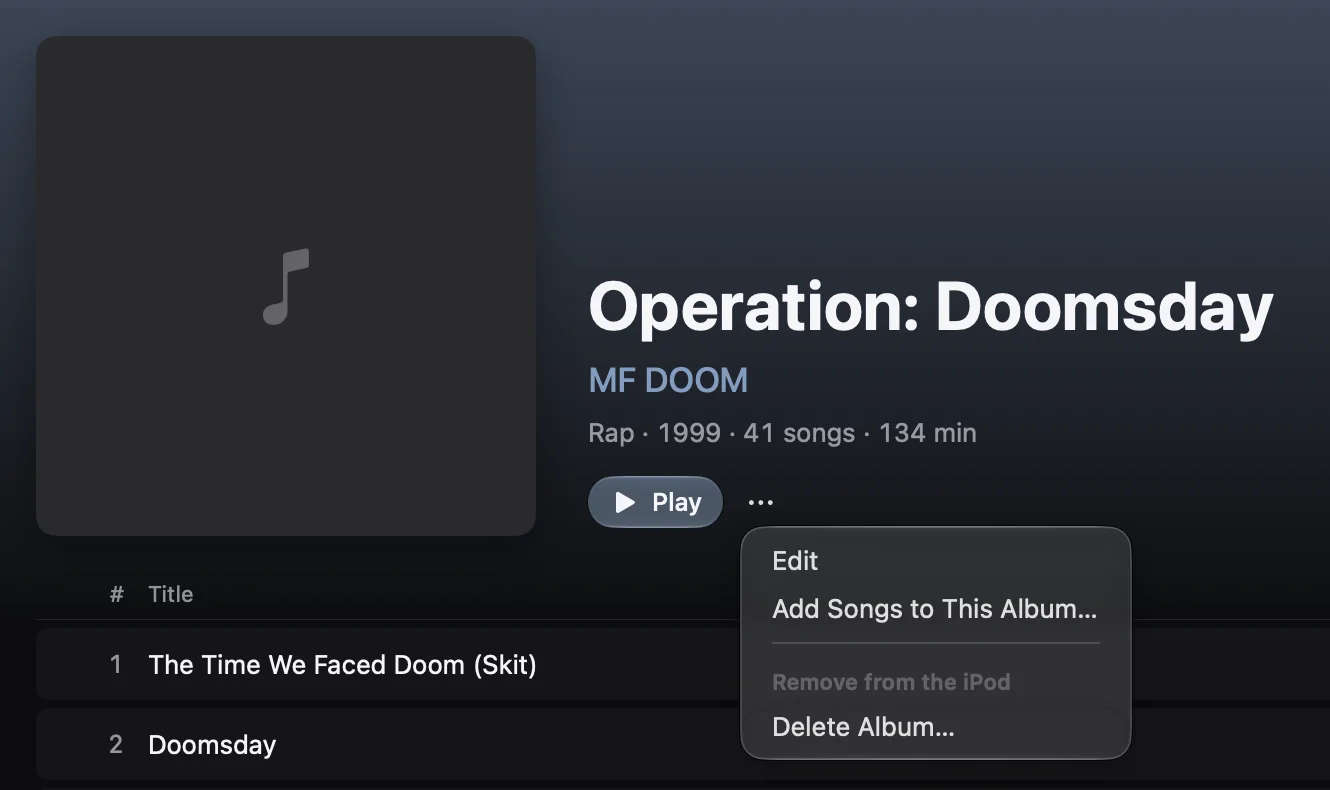
Double-click the album. Next to Play, click the three dots and choose Edit.
-
Click the empty cover
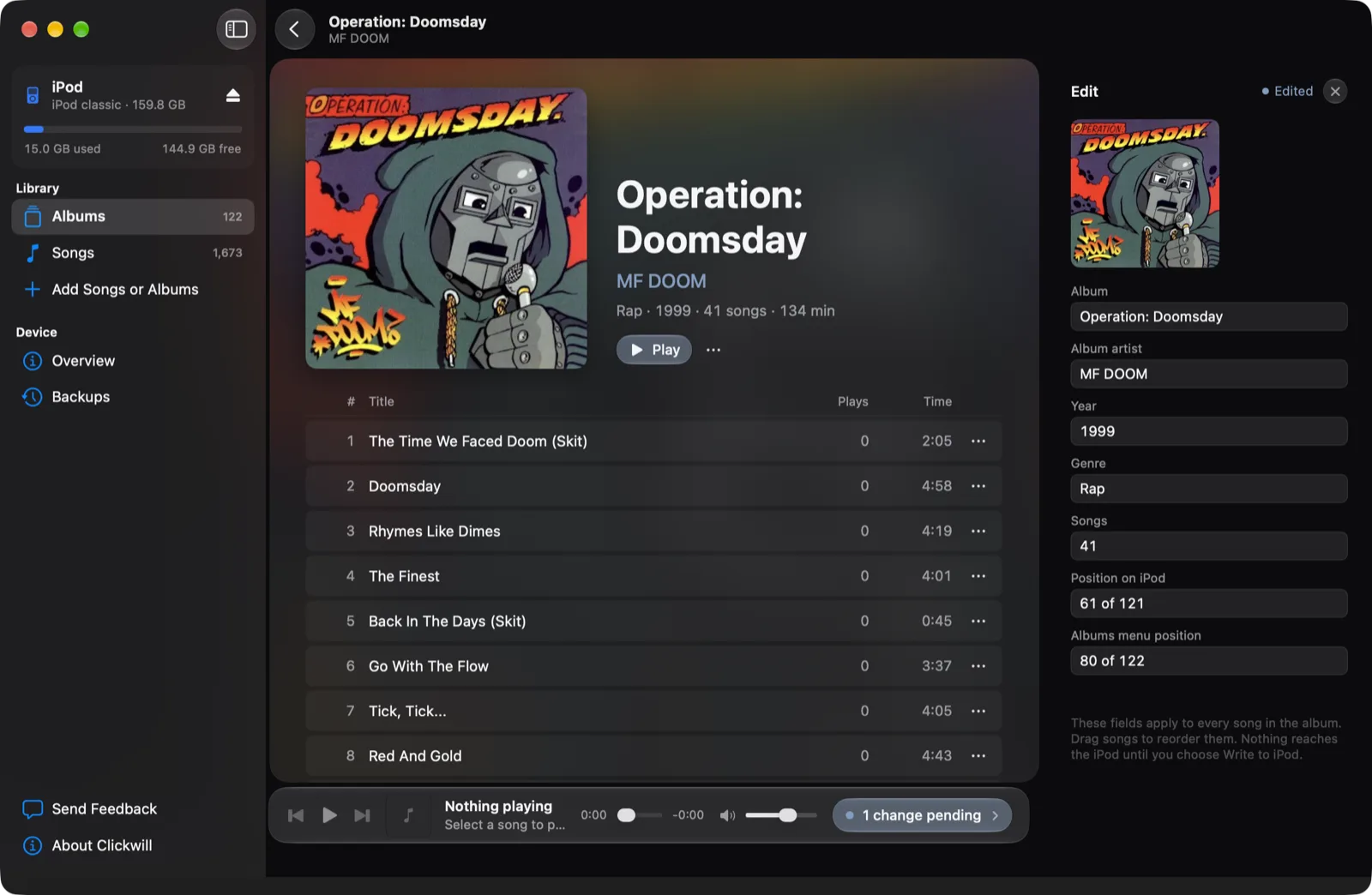
The Edit panel opens on the right, with the cover at the top. Click it, choose the image and click Use as Cover. You can also drag the image straight onto it.

-
Check the cover
The cover appears on the album and in the panel, which now says Edited. At the bottom of the window, 1 change pending means the iPod hasn't changed yet.
-
Click 1 change pending, then Write to iPod
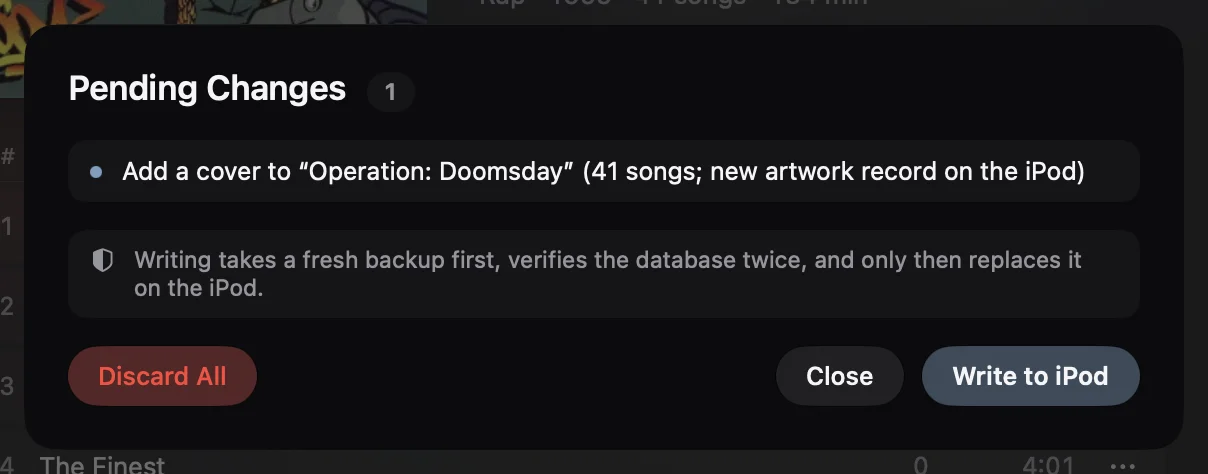
The list of changes says which album gets the cover and how many songs it covers. Click Write to iPod. Clickwill takes a fresh backup of the iPod's library, checks the new one twice and only then puts it on the iPod.
Where the cover shows on the iPod
The iPod classic keeps every cover in three sizes, the largest 320 by 320 pixels. Clickwill makes all three from your image, so the cover shows in Cover Flow, on Now Playing and everywhere else the iPod uses it.
Covers that show in one place but not another
Sometimes a cover is on the iPod but shows only in Cover Flow, or only on some songs. The iPod links a cover to the album for Cover Flow, and to each song for Now Playing, and those links can go wrong after a sync. Every time Clickwill writes to the iPod, it checks the links in the whole library and fixes the broken ones. The report after the write lists what it fixed.
Changing a cover you don't like
It works the same way: open the album, choose Edit, click the cover and choose a new image. The old cover is replaced on the next write.
Questions
Why is my iPod classic not showing album art?
Either the album never got a cover on the iPod, or the cover is there but linked wrongly, so it shows in one place and not another. Clickwill can add a cover to any album on the iPod, and when it writes it also fixes covers that are linked wrongly.
What size should album art be for an iPod classic?
Square, at least 320 by 320 pixels. That's the largest size the iPod classic shows. Clickwill makes the smaller sizes the iPod needs from it.
Do I need iTunes or Music to add album artwork to an iPod?
No. Clickwill writes the cover straight to the iPod's library on a Mac. Music never has to open.
More: how to manage songs on an iPod classic, and every way to manage an iPod classic on a Mac.